Getting started

Your first section, step by step.

There's no account to make and nothing to set up first. Everything here works on the free plan, except the last step.

5
minutes, start to finish
0
accounts to create
66
sections on the free plan
01

Add Folia to Framer.

Open Folia's page on the Framer Marketplace and add it. From then on it's in every project you open. Find it in the Plugins menu, or press ⌘K and type “Folia”.

Needs edit access. With view access, Folia opens but can't insert anything.
02

Pick a collection.

Three collections share one color system, so you can mix them on a page later. Start with the one closest to the site you're making.

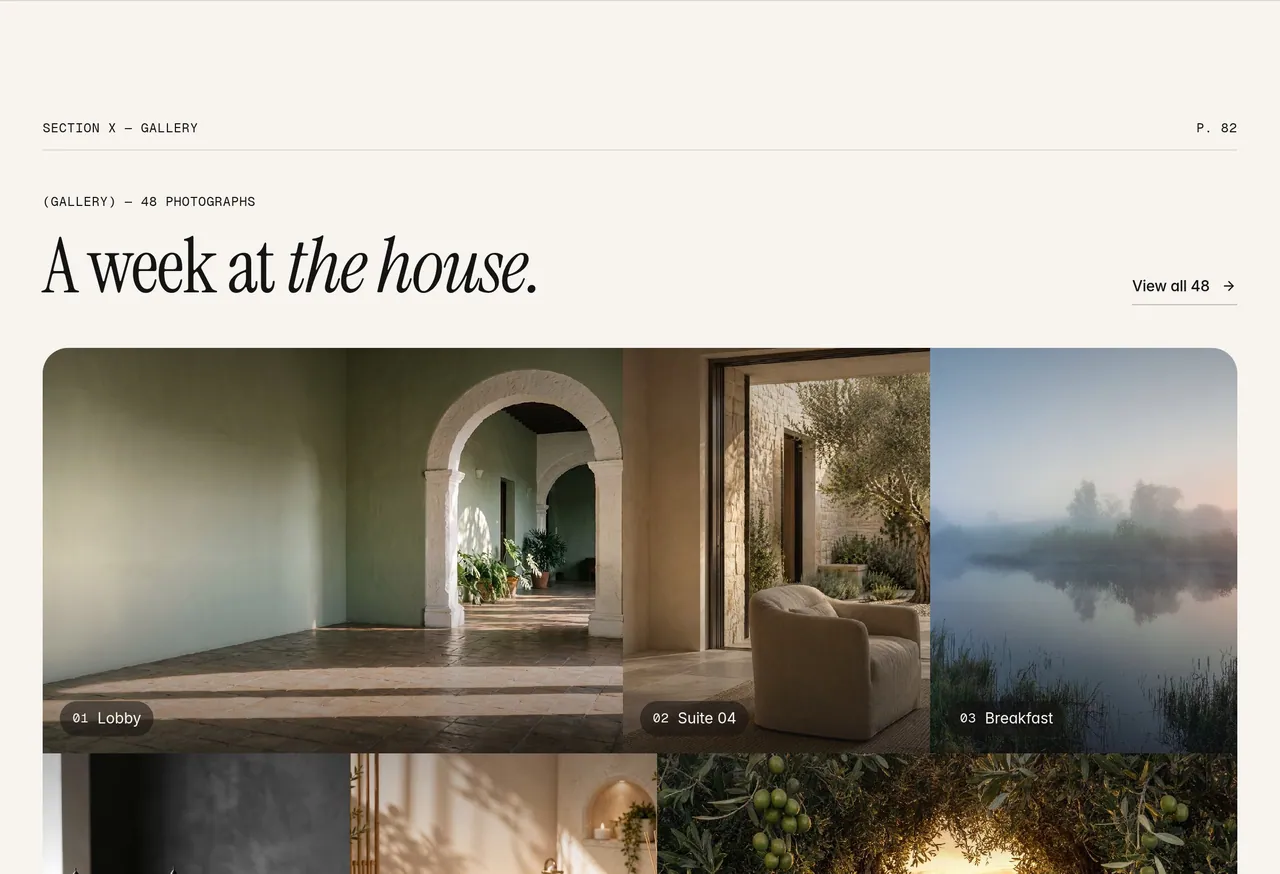
  • AtelierEditorial serif. Studios, interiors, hospitality.
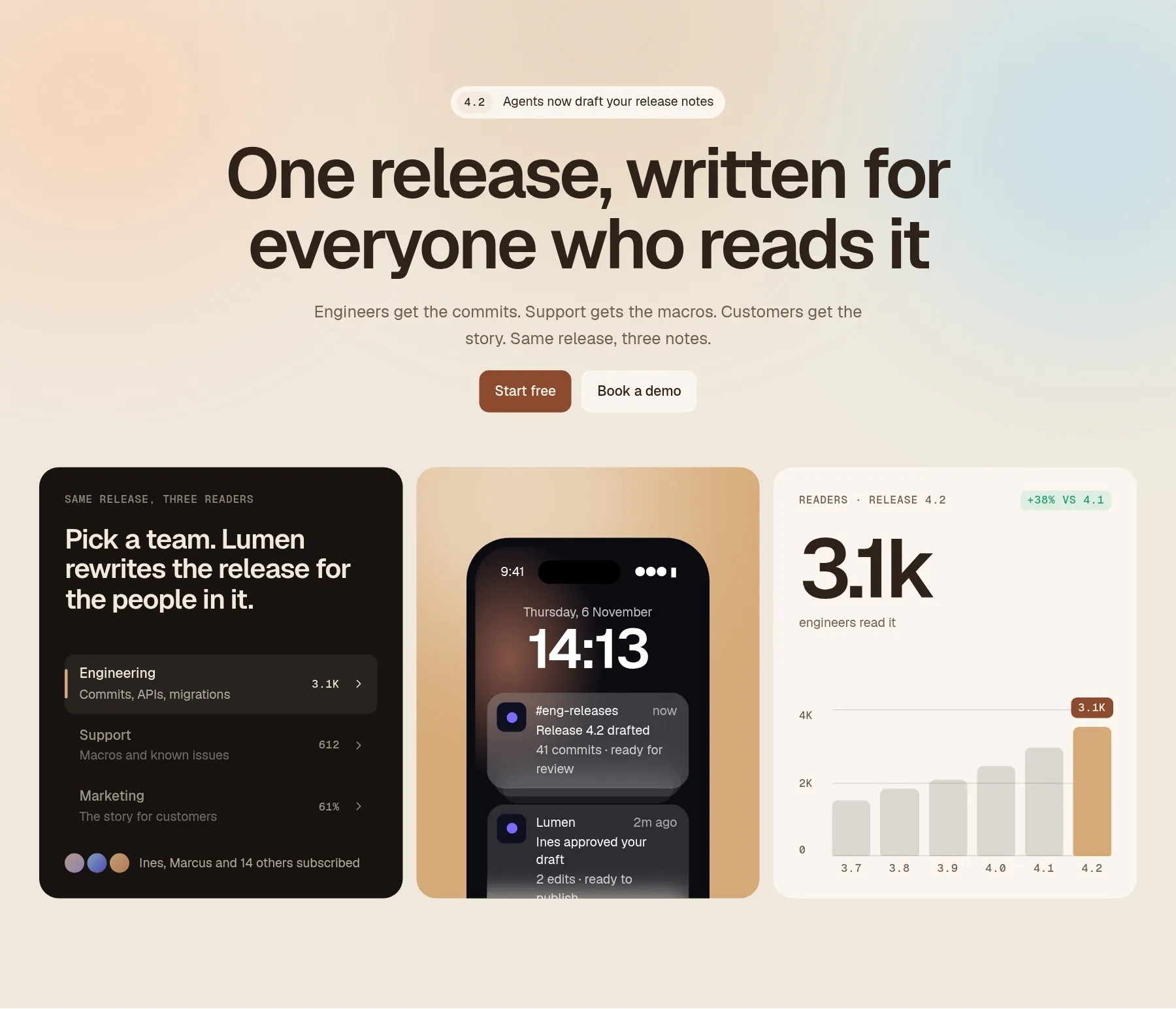
  • PulseProduct UI. SaaS, apps, AI tools.
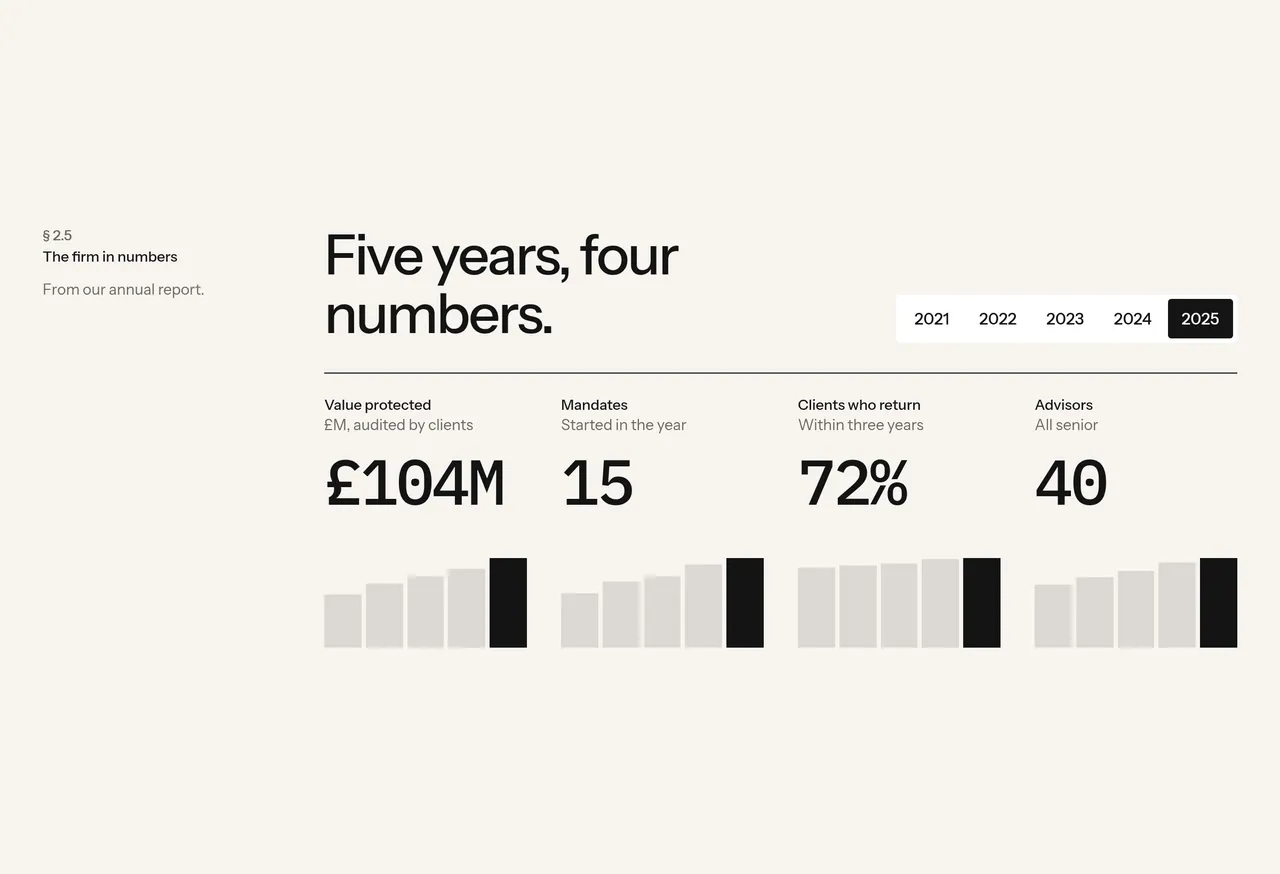
  • MethodLedger layouts and mono figures. Consulting, clinics, firms.
03

Find a section.

Chips at the top filter by type, each with a count. Search reads names, layouts and the kind of business a section suits, so “hotel” or “timeline” both work. The filter button narrows by industry and mood.

On the free plan, the first section of every type is open in each collection. The rest show a lock.

04

Choose how it arrives.

Insert in sets the color scheme of the next section: Light, Soft, Dark or Brand, all taken from your palette. A dark hero followed by light features is one click each.

Layers gives you plain Framer layers to change freely. Component keeps things like a mobile menu opening and closing, and is the default for navigation.

05

Insert it.

Select the section on the canvas you want the new one to follow, then insert. Folia places it right after, on Desktop, and lines up the Tablet and Phone versions in the same order.

Nothing selected? Folia still puts it inside the page, and you can drag it into place in the layers.

06

Match your site.

Open Style at the bottom of the panel. Pick one of nine palettes and every Folia section in the project changes with it, in light or dark.

Use site colours builds a palette from your own color styles. Use site fonts gives headings, body and labels your typefaces. Theme keeps the site light, dark or following the visitor's device.

07

Change the buttons.

The Bits tab has 20 button styles. Apply one to the selected section, or to the Folia buttons across the whole page.

Four styles are free. The other sixteen come with Pro.

08

Keep a shortlist.

Tap the heart on any section and it lands in Saved. The list follows you from project to project, which helps when a page comes together over a few days.

09

Turn on Pro.

Your license key arrives by email after you buy. Click Get Pro at the top of the panel, paste the key and press Activate. A small PRO tag appears next to the Folia name.

The key is checked on your computer and isn't sent anywhere. On a new browser, paste it again.

If something looks off.

The section landed in the wrong place

Select a section inside the page first, not the page itself or empty canvas, then insert again. Delete the misplaced one from the layers.

Tablet or Phone shows a different order

Folia tells you when it couldn't confirm the order on smaller sizes. Open the Tablet and Phone views and drag the section into place in the layers.

The colors didn't change

Palettes only recolor Folia sections. Anything you built yourself keeps its own colors, unless it uses the same color styles.

Still stuck?

Write to us with what you did and a screenshot. It's usually quick to sort out.

Ready to try it?

66 sections are free, with every palette.